> ## Documentation Index
> Fetch the complete documentation index at: https://docs.rime.ai/llms.txt
> Use this file to discover all available pages before exploring further.
# CLI Quickstart
> Install the Rime CLI and synthesize your first audio clip from the terminal.
Go from zero to using Rime's TTS API in 60 seconds using the Rime CLI.
## Prerequisites
* **A Rime account:** [Sign up free](https://app.rime.ai/signup/) (you will log in through the CLI)
* **macOS or Linux** (the CLI runs on both)
## Step 1: Install the CLI
Pick your preferred installation method.
```bash Shell script theme={null}
curl -fsSL https://rime.ai/install-cli.sh | sh
```
Verify the installation:
```bash theme={null}
rime --version
```
```
rime version 0.x.x
```
After installation, you may need to open a new terminal or run `source ~/.zshrc` (or `~/.bashrc`) for the `rime` command to be available.
## Step 2: Log in
```bash theme={null}
rime login
```
This opens your browser to the Rime dashboard. Authenticate there, and the CLI saves your API key to `~/.rime/rime.toml` automatically.
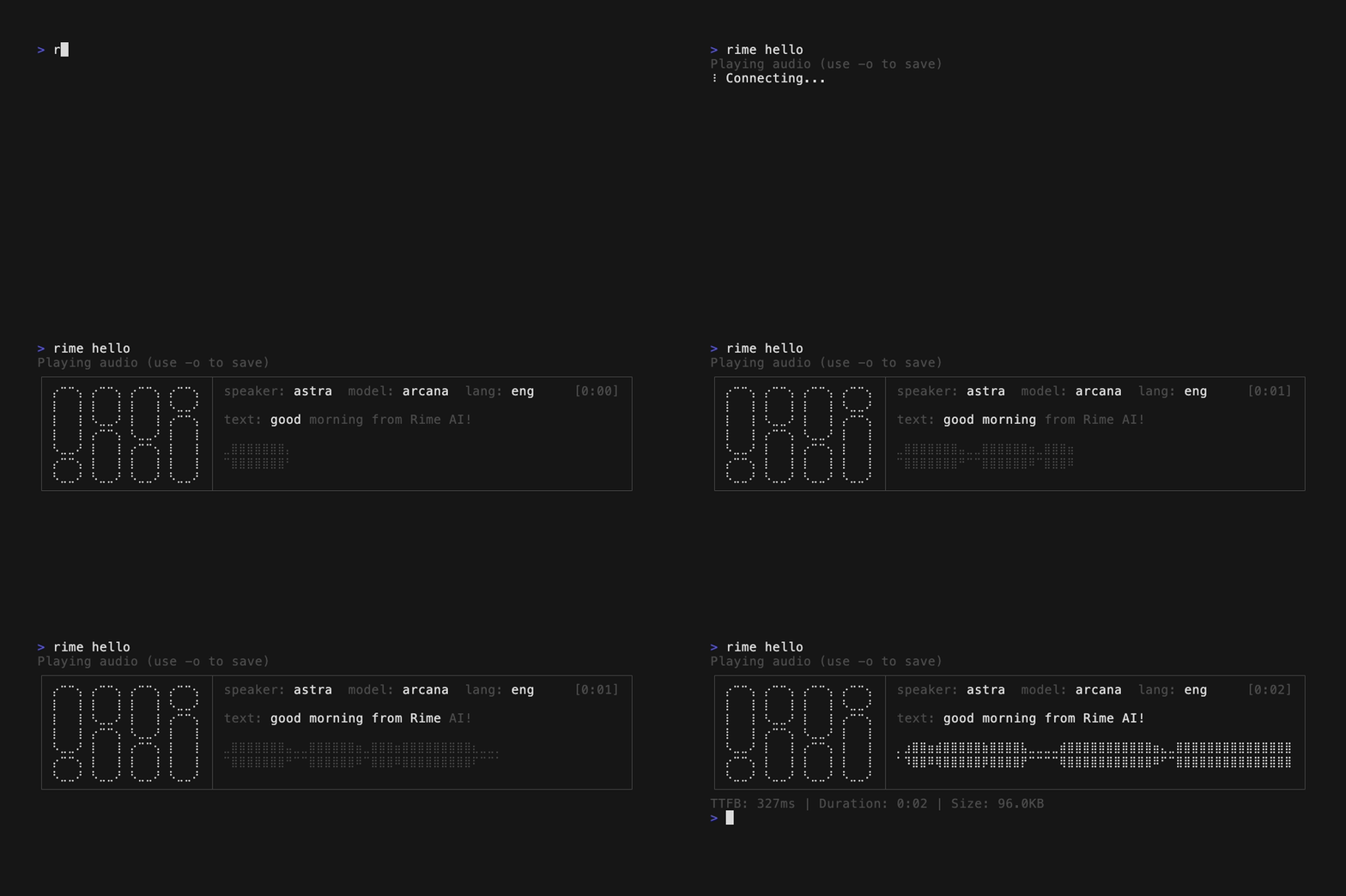
 ## Step 3: Hear your first voice
```bash theme={null}
rime hello
```
## Step 3: Hear your first voice
```bash theme={null}
rime hello
```
 ## Synthesize your own text
Now that the CLI is set up, generate speech from any text:
```bash theme={null}
rime tts "Hello from Rime." -s celeste -m coda
```
## Synthesize your own text
Now that the CLI is set up, generate speech from any text:
```bash theme={null}
rime tts "Hello from Rime." -s celeste -m coda
```
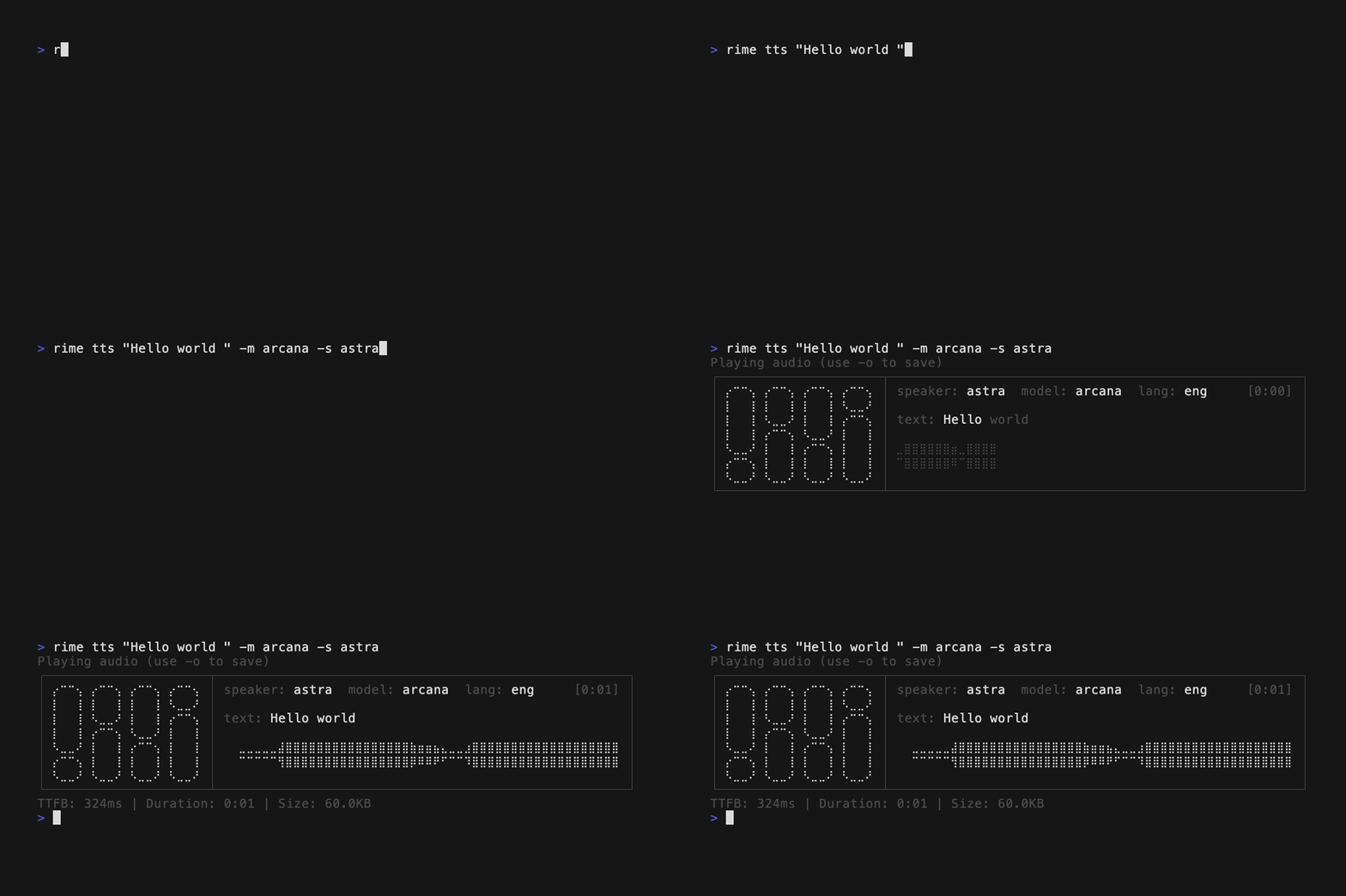 This plays the audio directly. To save it to a file instead:
```bash theme={null}
rime tts "Hey, how's it going?" -s celeste -m coda -o welcome.wav
```
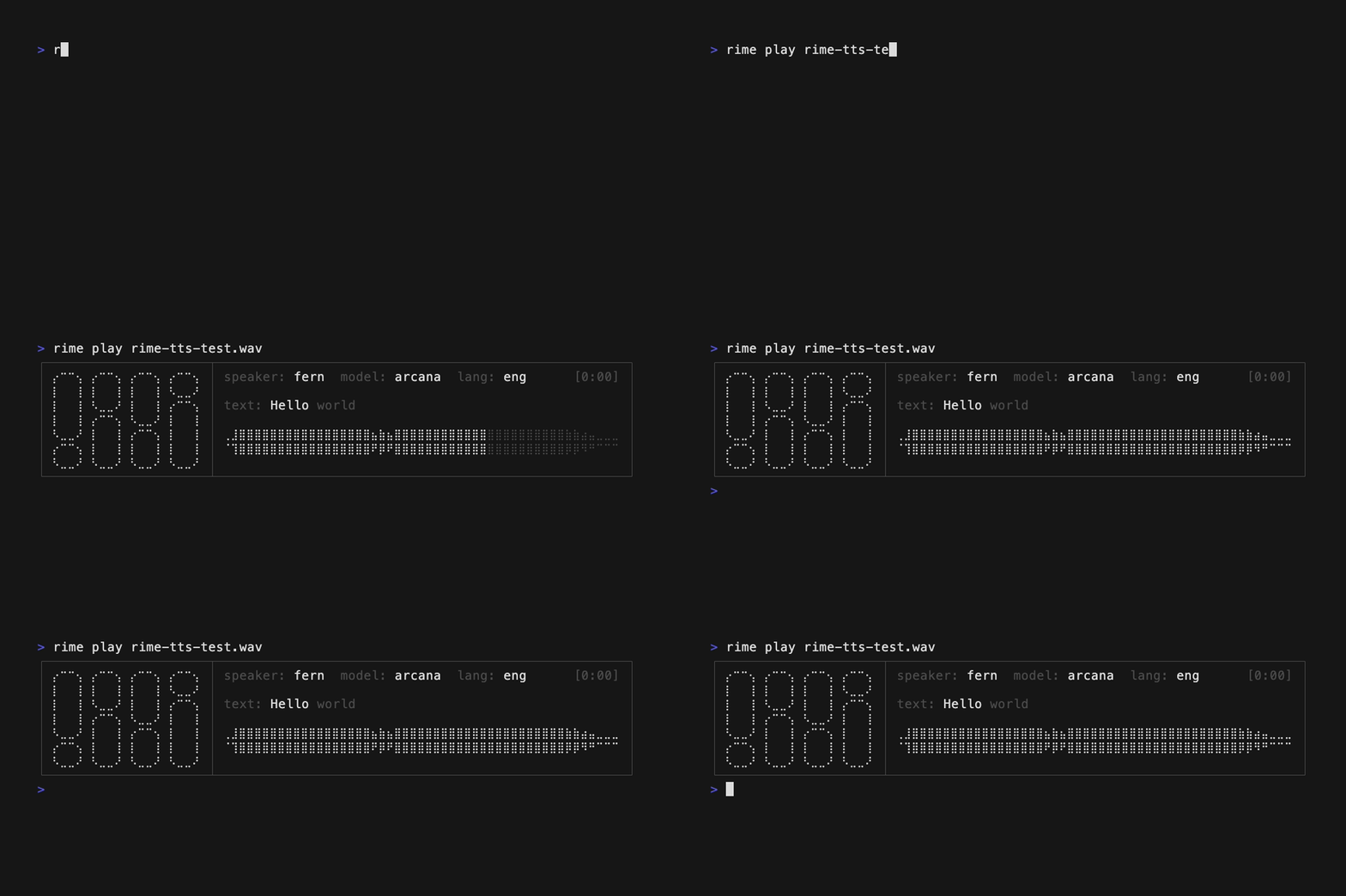
Play it back with waveform visualization:
```bash theme={null}
rime play welcome.wav
```
This plays the audio directly. To save it to a file instead:
```bash theme={null}
rime tts "Hey, how's it going?" -s celeste -m coda -o welcome.wav
```
Play it back with waveform visualization:
```bash theme={null}
rime play welcome.wav
```
 ## Try different voices and models
Rime offers 94+ voices. Swap the `--speaker` flag to change the voice:
```bash theme={null}
rime tts "The quick brown fox." -s orion -m coda
rime tts "The quick brown fox." -s luna -m coda
rime tts "The quick brown fox." -s peak -m mistv3
rime tts "The quick brown fox." -s peak -m mistv2
```
`coda`, `mistv3`, `arcana`, and `arcanav2` output WAV by default. `mistv2` and `mist` output MP3 by default. Use `--format` to override.
## Generate a curl command
Need to integrate with the API directly? Generate a ready-to-use curl command:
```bash theme={null}
rime curl "Hello from Rime" -s astra -m coda
```
```
curl --request POST \
--url 'https://users.rime.ai/v1/rime-tts' \
--header 'Accept: audio/wav' \
--header 'Authorization: Bearer $RIME_CLI_API_KEY' \
--header 'Content-Type: application/json' \
--data '{
"text": "Hello from Rime",
"speaker": "astra",
"modelId": "coda",
"lang": "eng"
}'
# Tip: use --show-key or export RIME_CLI_API_KEY
```
Add `--show-key` to include your actual API key in the output, or `--oneline` for easy copy-paste.
## Next steps
Full command and flag reference
Browse all 94+ available voices
Compare models: Coda, Arcana, Mist v3, Mist v2
Use the API from Python or JavaScript
## Try different voices and models
Rime offers 94+ voices. Swap the `--speaker` flag to change the voice:
```bash theme={null}
rime tts "The quick brown fox." -s orion -m coda
rime tts "The quick brown fox." -s luna -m coda
rime tts "The quick brown fox." -s peak -m mistv3
rime tts "The quick brown fox." -s peak -m mistv2
```
`coda`, `mistv3`, `arcana`, and `arcanav2` output WAV by default. `mistv2` and `mist` output MP3 by default. Use `--format` to override.
## Generate a curl command
Need to integrate with the API directly? Generate a ready-to-use curl command:
```bash theme={null}
rime curl "Hello from Rime" -s astra -m coda
```
```
curl --request POST \
--url 'https://users.rime.ai/v1/rime-tts' \
--header 'Accept: audio/wav' \
--header 'Authorization: Bearer $RIME_CLI_API_KEY' \
--header 'Content-Type: application/json' \
--data '{
"text": "Hello from Rime",
"speaker": "astra",
"modelId": "coda",
"lang": "eng"
}'
# Tip: use --show-key or export RIME_CLI_API_KEY
```
Add `--show-key` to include your actual API key in the output, or `--oneline` for easy copy-paste.
## Next steps
Full command and flag reference
Browse all 94+ available voices
Compare models: Coda, Arcana, Mist v3, Mist v2
Use the API from Python or JavaScript