> ## Documentation Index
> Fetch the complete documentation index at: https://docs.rime.ai/llms.txt
> Use this file to discover all available pages before exploring further.
# Vapi
> Connect Rime TTS to Vapi for phone-based voice agents and IVR systems.
export const IntegrationHeader = ({partnerLogo, partnerAlt = "Partner logo", rimeLogo = "/images/rime_logo_new.svg", rimeAlt = "Rime logo", rimeHeight = "40px", partnerHeight = "40px"}) =>
 +
+

;
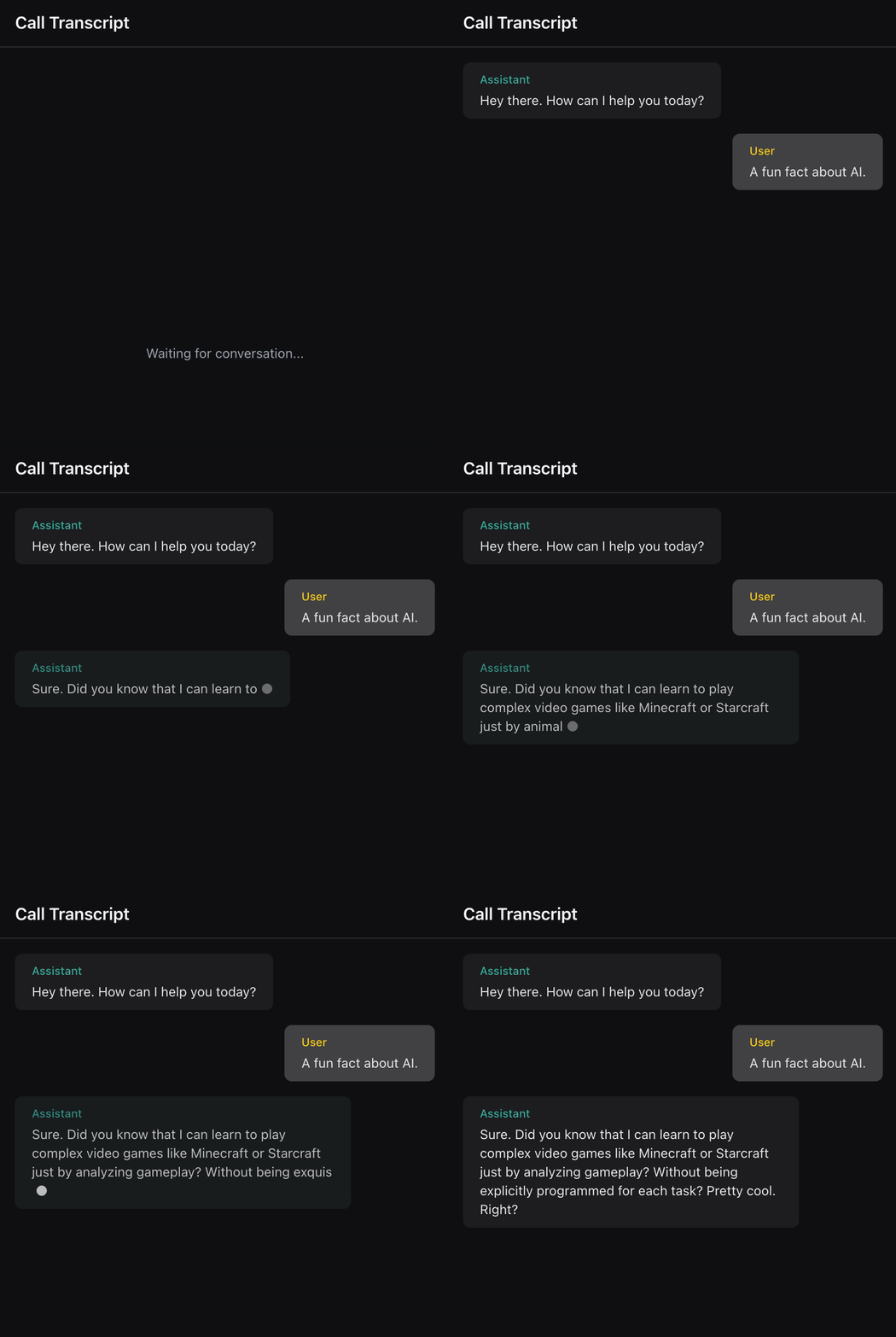 [Vapi](https://vapi.ai) is an API-first platform for building, testing, and deploying AI voice agents. It handles telephony, orchestration, and integrations so you can focus on your agent's behavior. Paired with Rime's ultra-realistic voices, you get natural-sounding conversations with sub-200ms latency. This guide walks you through creating a basic voice assistant with Vapi and Rime.
## Prerequisites
To follow this guide, you need:
* A [Vapi](https://dashboard.vapi.ai) account
* A Rime [API key](https://app.rime.ai/tokens) (optional)
## Step 1: Create the assistant
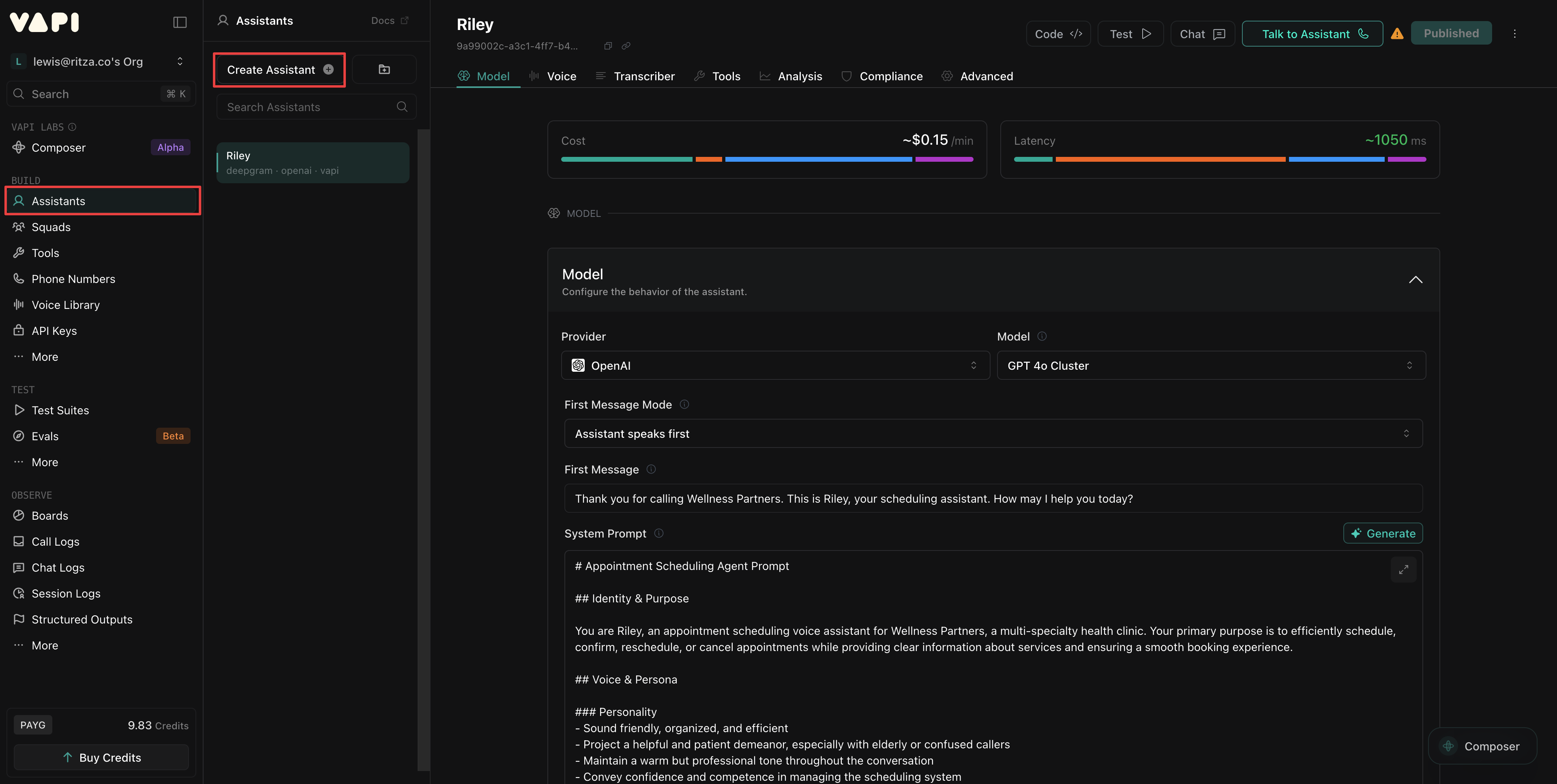
From the [Vapi Dashboard](https://dashboard.vapi.ai), navigate to **Assistants** and click **Create Assistant**.
[Vapi](https://vapi.ai) is an API-first platform for building, testing, and deploying AI voice agents. It handles telephony, orchestration, and integrations so you can focus on your agent's behavior. Paired with Rime's ultra-realistic voices, you get natural-sounding conversations with sub-200ms latency. This guide walks you through creating a basic voice assistant with Vapi and Rime.
## Prerequisites
To follow this guide, you need:
* A [Vapi](https://dashboard.vapi.ai) account
* A Rime [API key](https://app.rime.ai/tokens) (optional)
## Step 1: Create the assistant
From the [Vapi Dashboard](https://dashboard.vapi.ai), navigate to **Assistants** and click **Create Assistant**.
 ### 1.1 Select a template
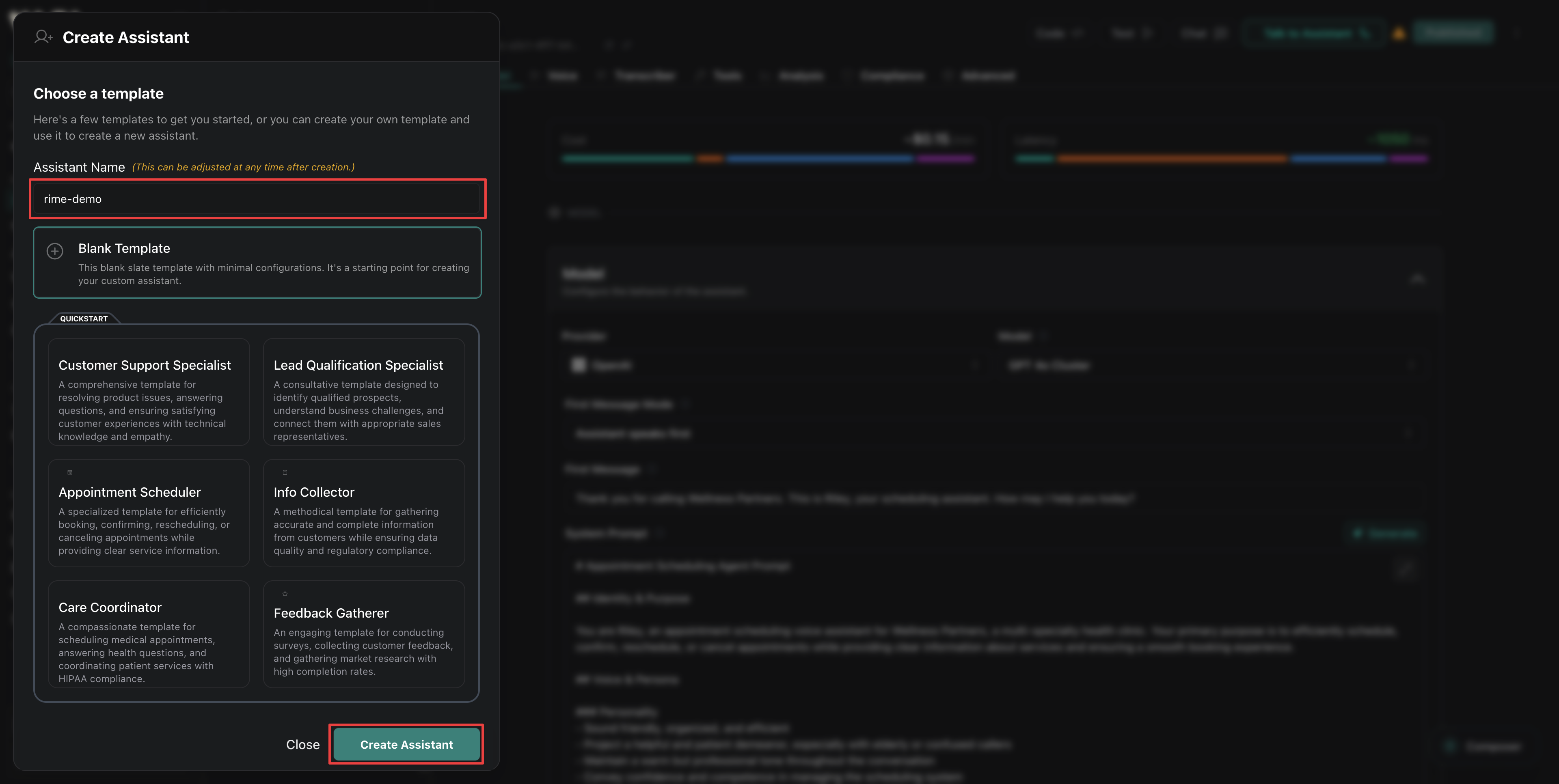
Give your assistant a name, select **Blank Template**, and click **Create Assistant**.
### 1.1 Select a template
Give your assistant a name, select **Blank Template**, and click **Create Assistant**.
 ### 1.2 Configure the model
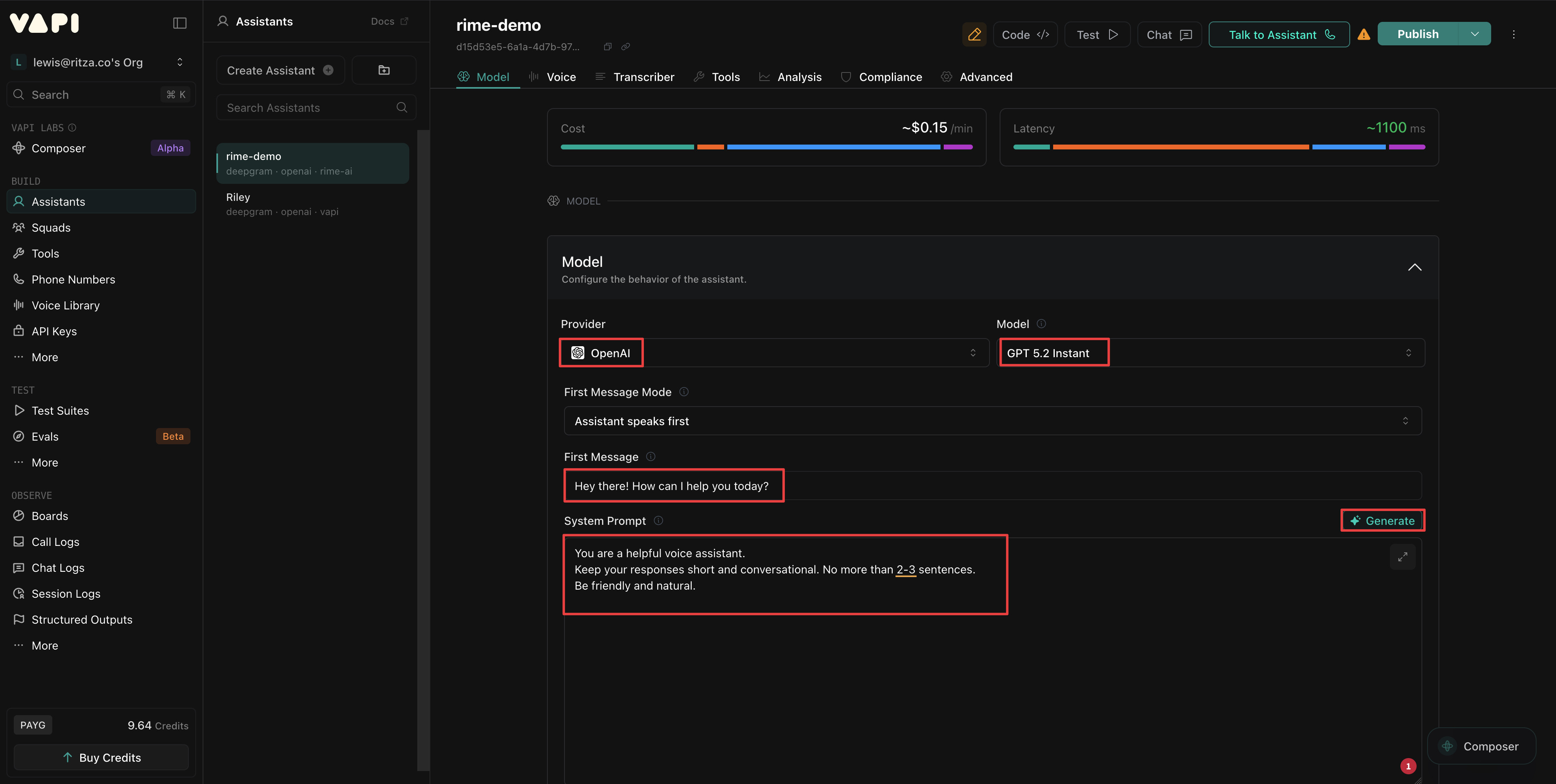
In the **Model** tab, select your preferred LLM provider. Any option should work, but models with lower latency enable better conversational flow.
Add a **First Message** to enable your assistant to begin conversations.
Configure a **System Prompt** to define your agent's personality and behavior. The system prompt can be as complex or simple as you like. For example:
```
You are a helpful voice assistant.
Keep your responses short and conversational. No more than 2-3 sentences.
Be friendly and natural.
```
Alternatively, use the **Generate** button and get AI help to create a well-structured prompt.
### 1.2 Configure the model
In the **Model** tab, select your preferred LLM provider. Any option should work, but models with lower latency enable better conversational flow.
Add a **First Message** to enable your assistant to begin conversations.
Configure a **System Prompt** to define your agent's personality and behavior. The system prompt can be as complex or simple as you like. For example:
```
You are a helpful voice assistant.
Keep your responses short and conversational. No more than 2-3 sentences.
Be friendly and natural.
```
Alternatively, use the **Generate** button and get AI help to create a well-structured prompt.
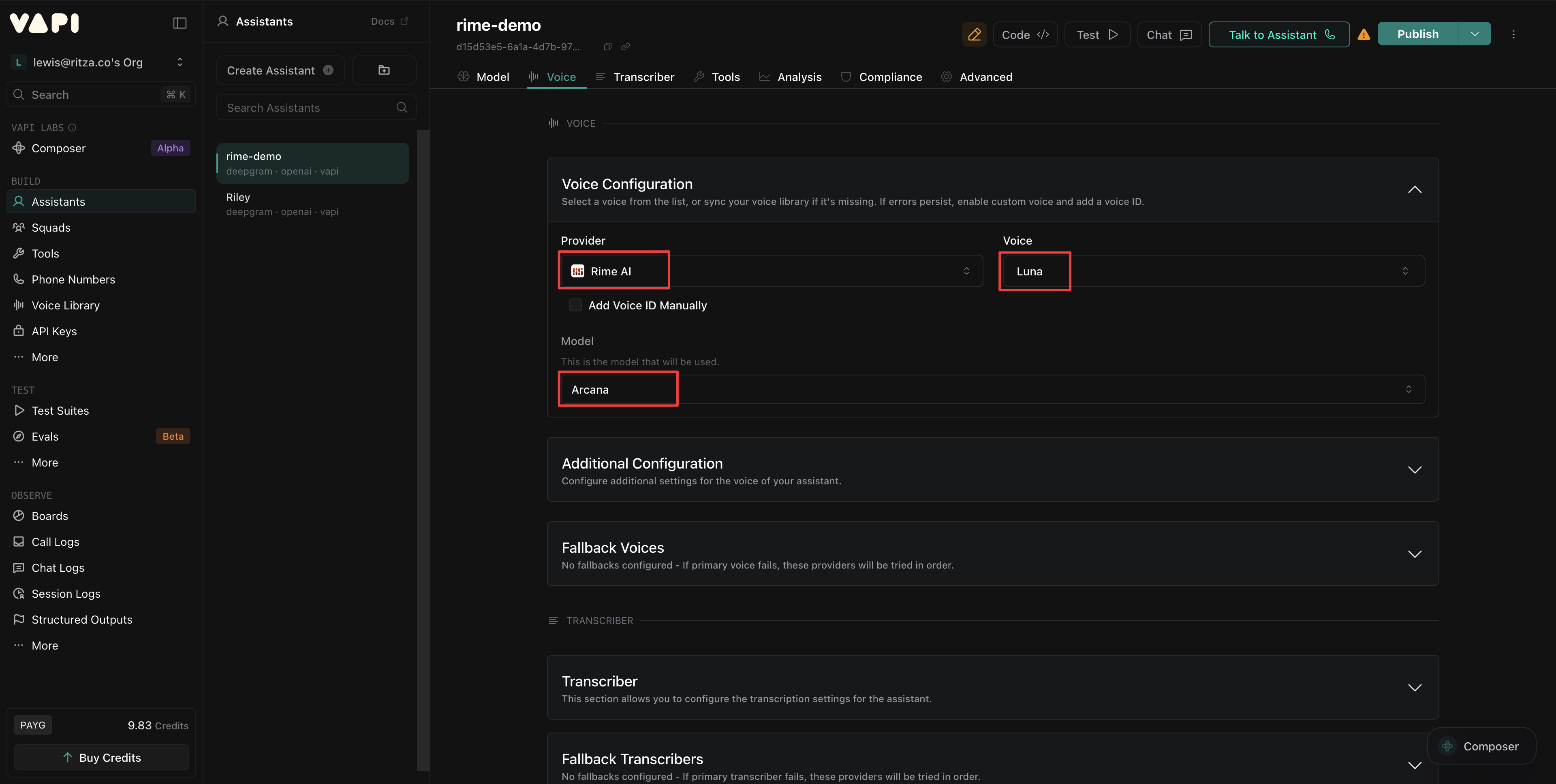
 ### 1.3 Configure the voice
In the **Voice** tab, configure your assistant to use **Rime AI** as the **Provider**.
Select the **Voice** that you want your assistant to use. Learn more about Rime's voices on the [Voices](./voices) page.
Set the **Model** to **Arcana** to use the latest Rime model with the most realistic voices.
### 1.3 Configure the voice
In the **Voice** tab, configure your assistant to use **Rime AI** as the **Provider**.
Select the **Voice** that you want your assistant to use. Learn more about Rime's voices on the [Voices](./voices) page.
Set the **Model** to **Arcana** to use the latest Rime model with the most realistic voices.
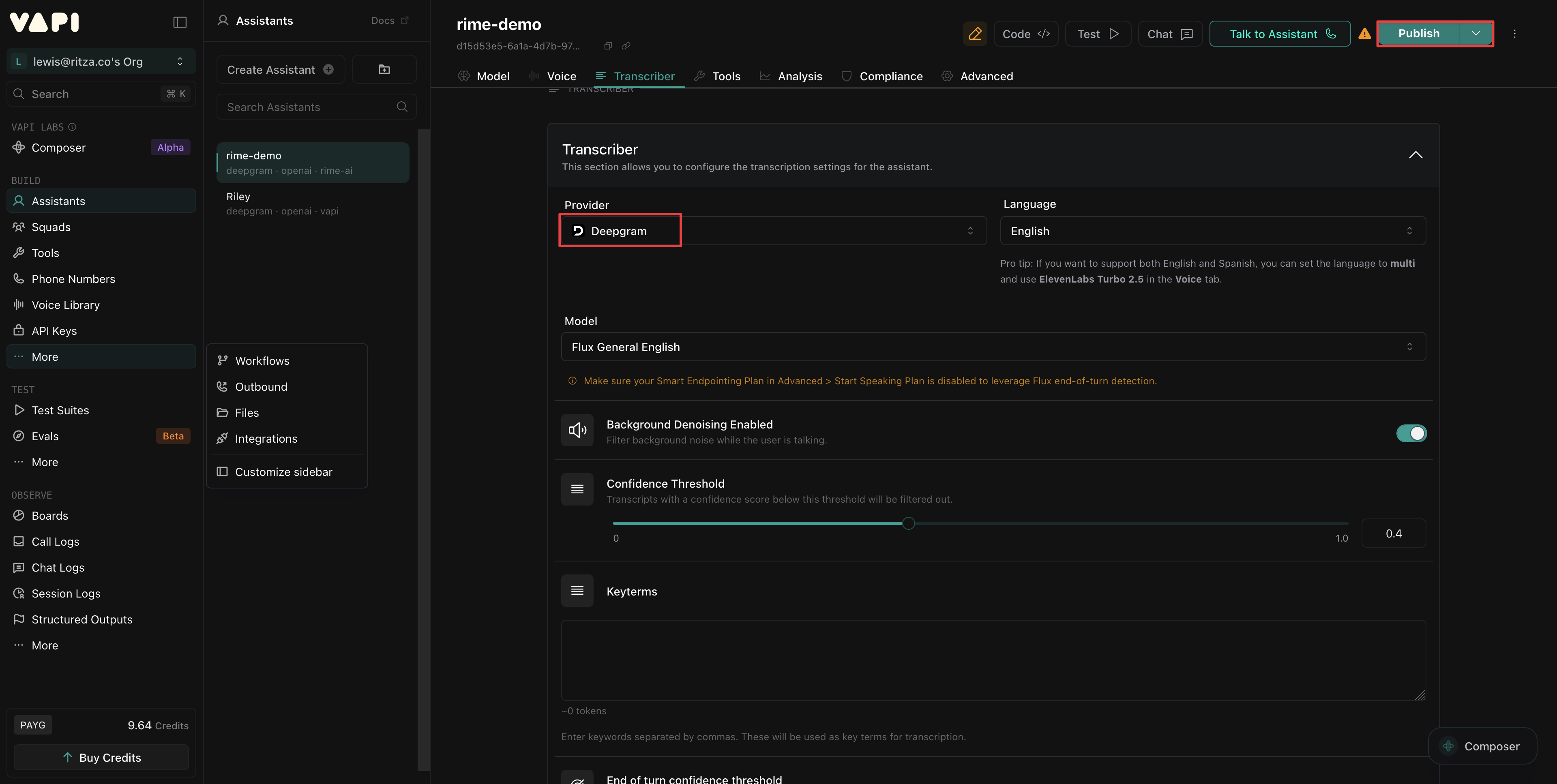
 ### 1.4 Configure the transcriber
Finally, in the **Transcriber** tab, select your preferred speech-to-text (STT) **Provider** and click **Publish**.
### 1.4 Configure the transcriber
Finally, in the **Transcriber** tab, select your preferred speech-to-text (STT) **Provider** and click **Publish**.
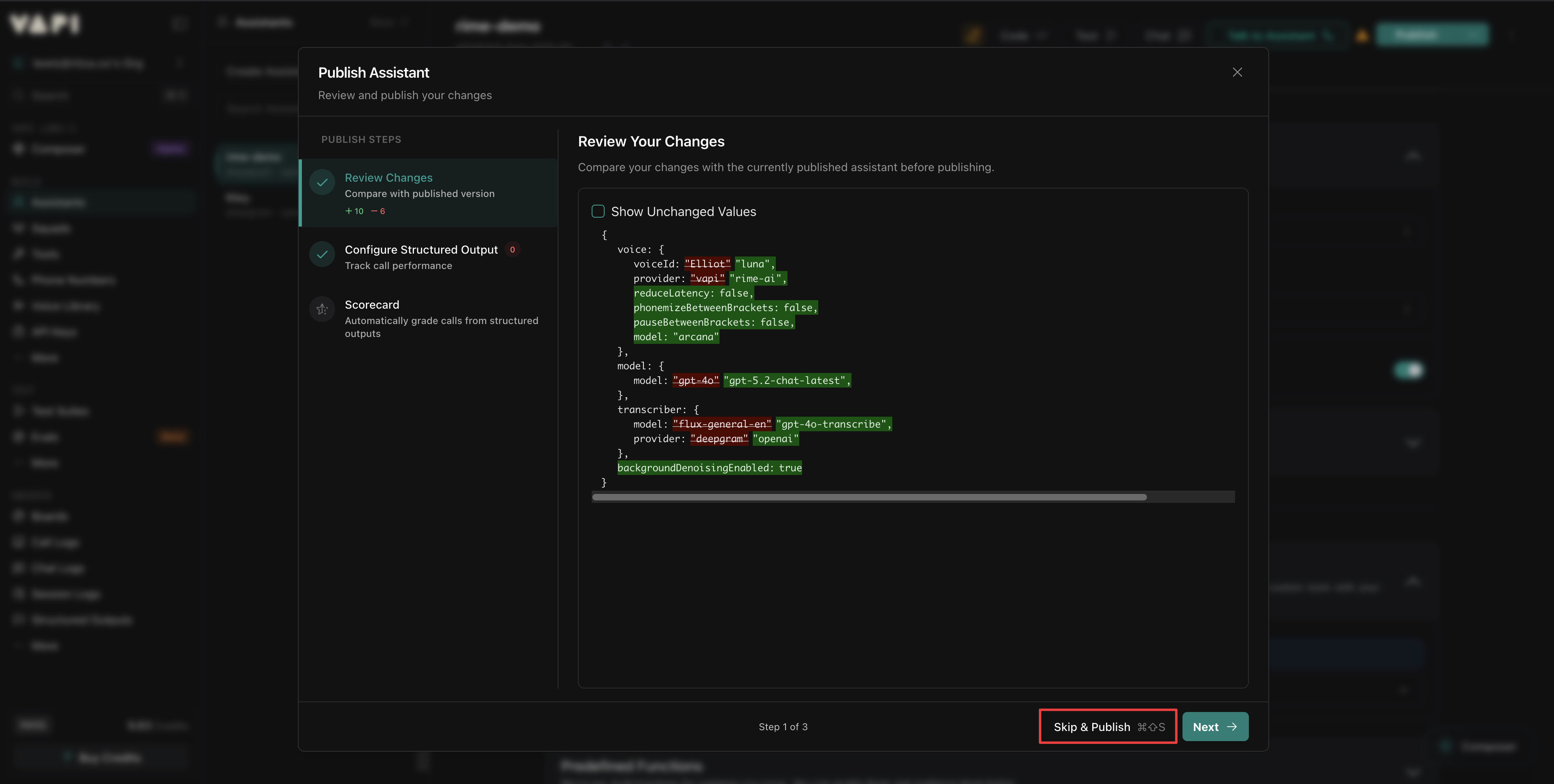
 ### 1.5 Publish the assistant
In the publishing popup window, select **Skip and Publish**.
### 1.5 Publish the assistant
In the publishing popup window, select **Skip and Publish**.
 ## Step 2: Add your API keys to Vapi (optional)
Vapi provides API access to all its supported models via its billing plans. However, if you already have a subscription plan for one or more of your assistant's configured providers, you can enable the assistant to access them instead of using integrated Vapi billing:
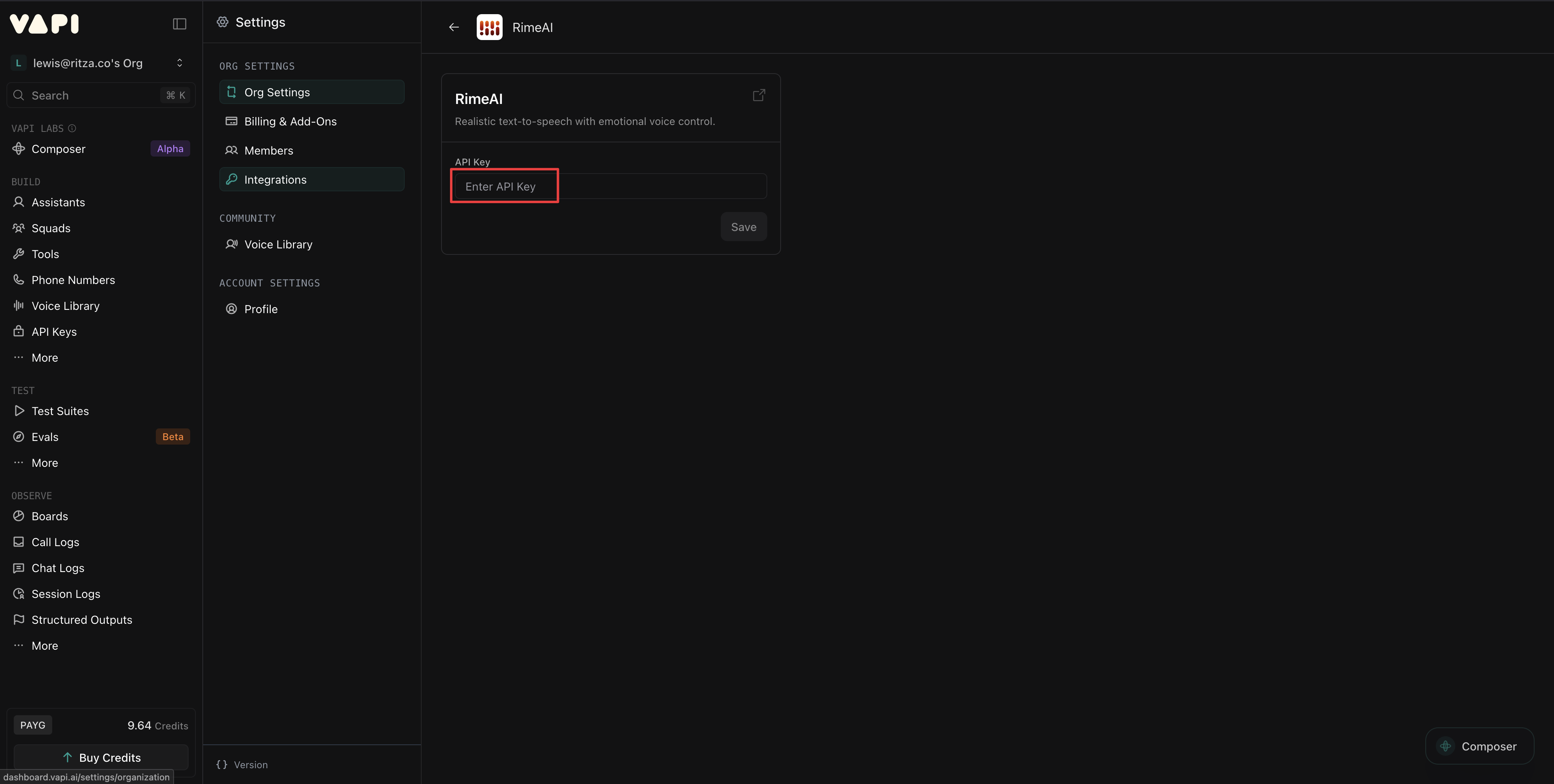
Under the **Build** heading, click **More** and select **Integrations**. Then, find your providers and add your API keys.
## Step 2: Add your API keys to Vapi (optional)
Vapi provides API access to all its supported models via its billing plans. However, if you already have a subscription plan for one or more of your assistant's configured providers, you can enable the assistant to access them instead of using integrated Vapi billing:
Under the **Build** heading, click **More** and select **Integrations**. Then, find your providers and add your API keys.
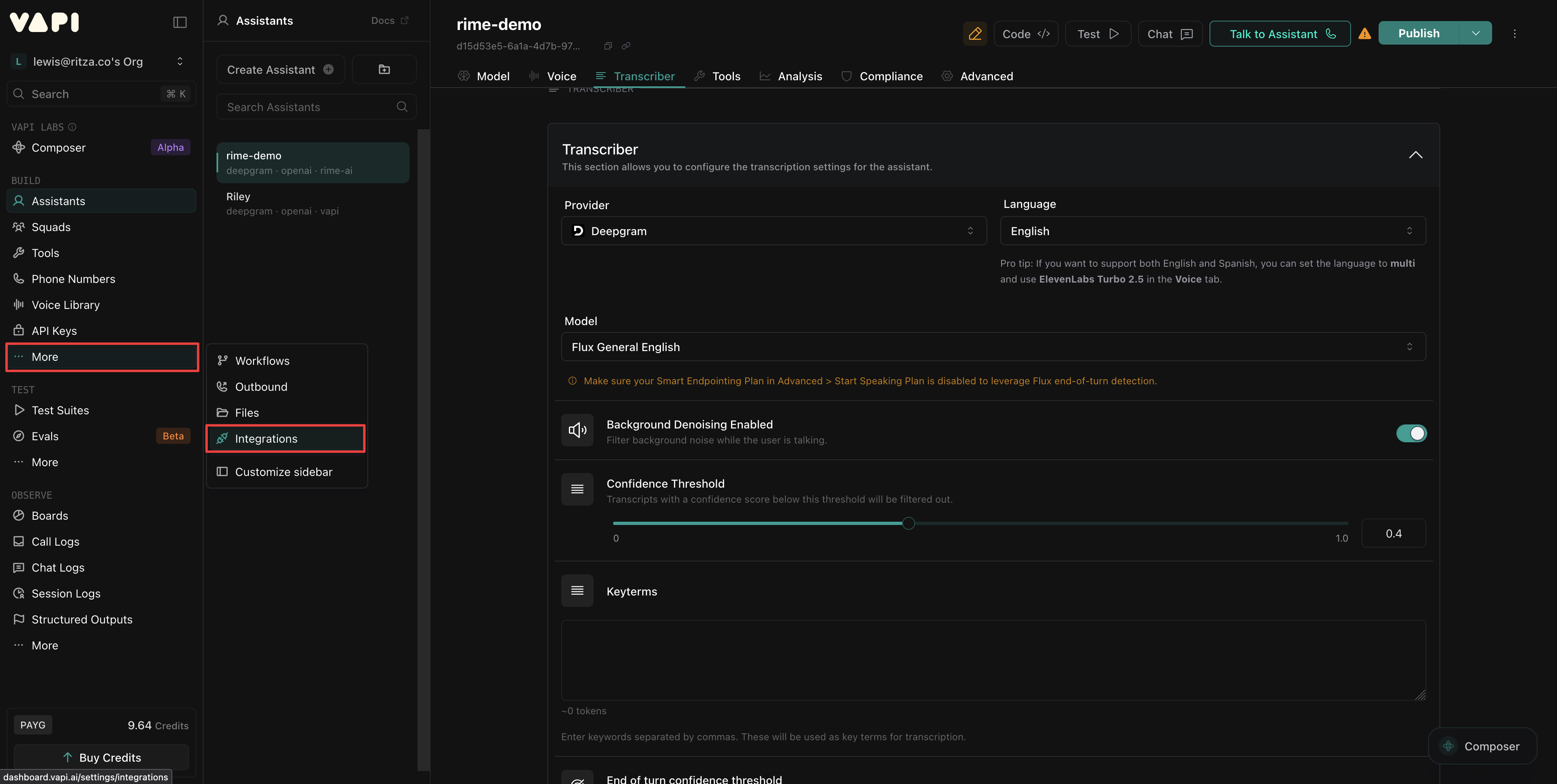 Vapi stores API keys securely and automatically grants your assistants access to them.
 ## Step 3: Test your assistant
The above steps create the most basic assistant using Rime's voices.
Click **Talk to Assistant** in the dashboard to start a conversation in your browser.
## Next steps
To further customize your assistant, you can:
* **Try different voices:** Audition other voices like `celeste`, `orion`, and `andromeda` at [app.rime.ai](https://app.rime.ai).
* **Add a phone number:** Provision a contact number in the Vapi dashboard and assign it to your assistant for telephony
* **Create a workflow:** Program your assistant to do complex tasks using [Vapi Workflows](https://dashboard.vapi.ai/workflows).
* **Customize the personality:** Update the system prompt to match your use case.
## Step 3: Test your assistant
The above steps create the most basic assistant using Rime's voices.
Click **Talk to Assistant** in the dashboard to start a conversation in your browser.
## Next steps
To further customize your assistant, you can:
* **Try different voices:** Audition other voices like `celeste`, `orion`, and `andromeda` at [app.rime.ai](https://app.rime.ai).
* **Add a phone number:** Provision a contact number in the Vapi dashboard and assign it to your assistant for telephony
* **Create a workflow:** Program your assistant to do complex tasks using [Vapi Workflows](https://dashboard.vapi.ai/workflows).
* **Customize the personality:** Update the system prompt to match your use case.