


Prerequisites
Step 1: Create the assistant
In the Vapi Dashboard, open Assistants and select Create Assistant.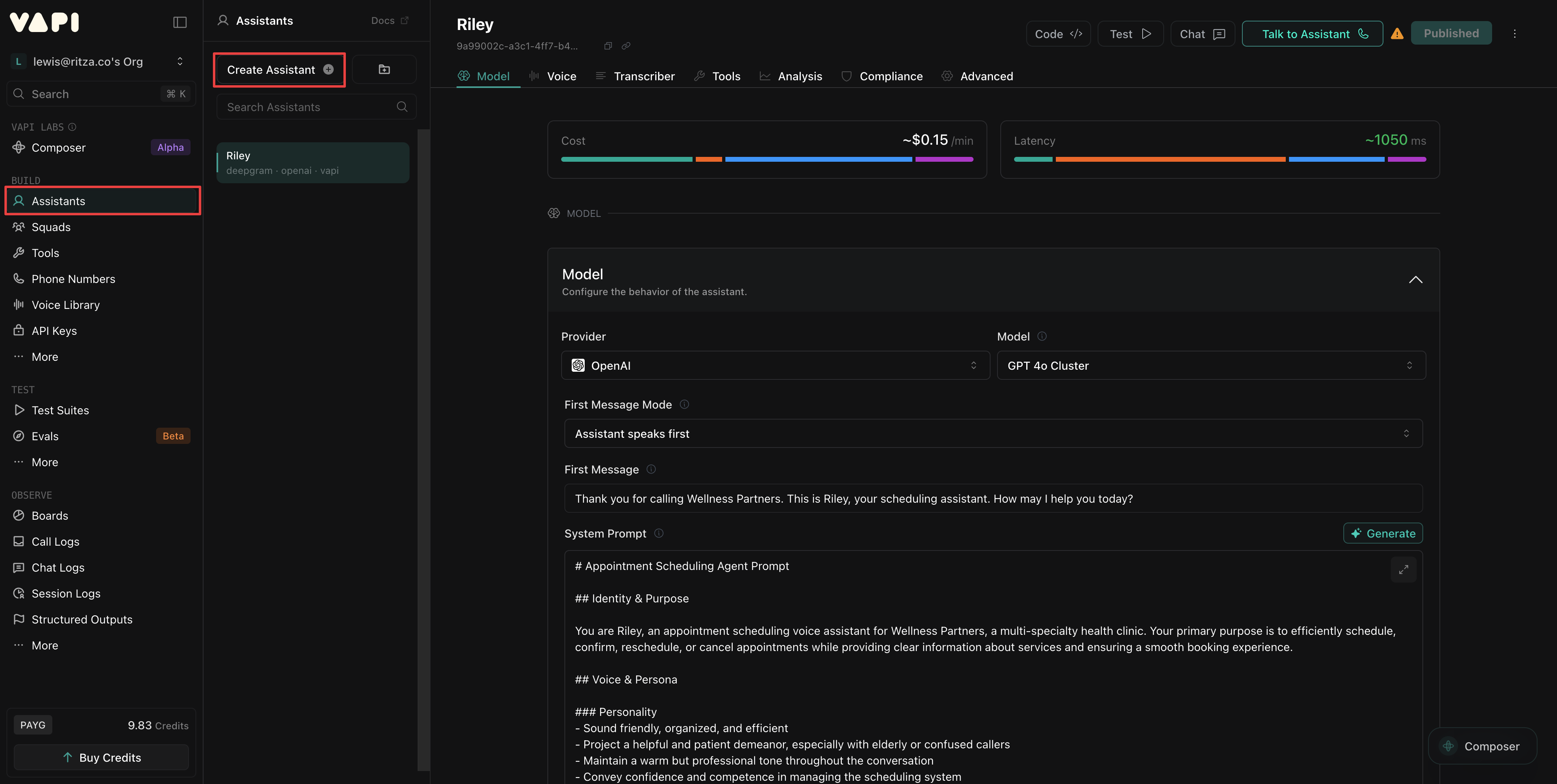
1.1 Select a template
Give your assistant a name, select Blank Template, and select Create Assistant.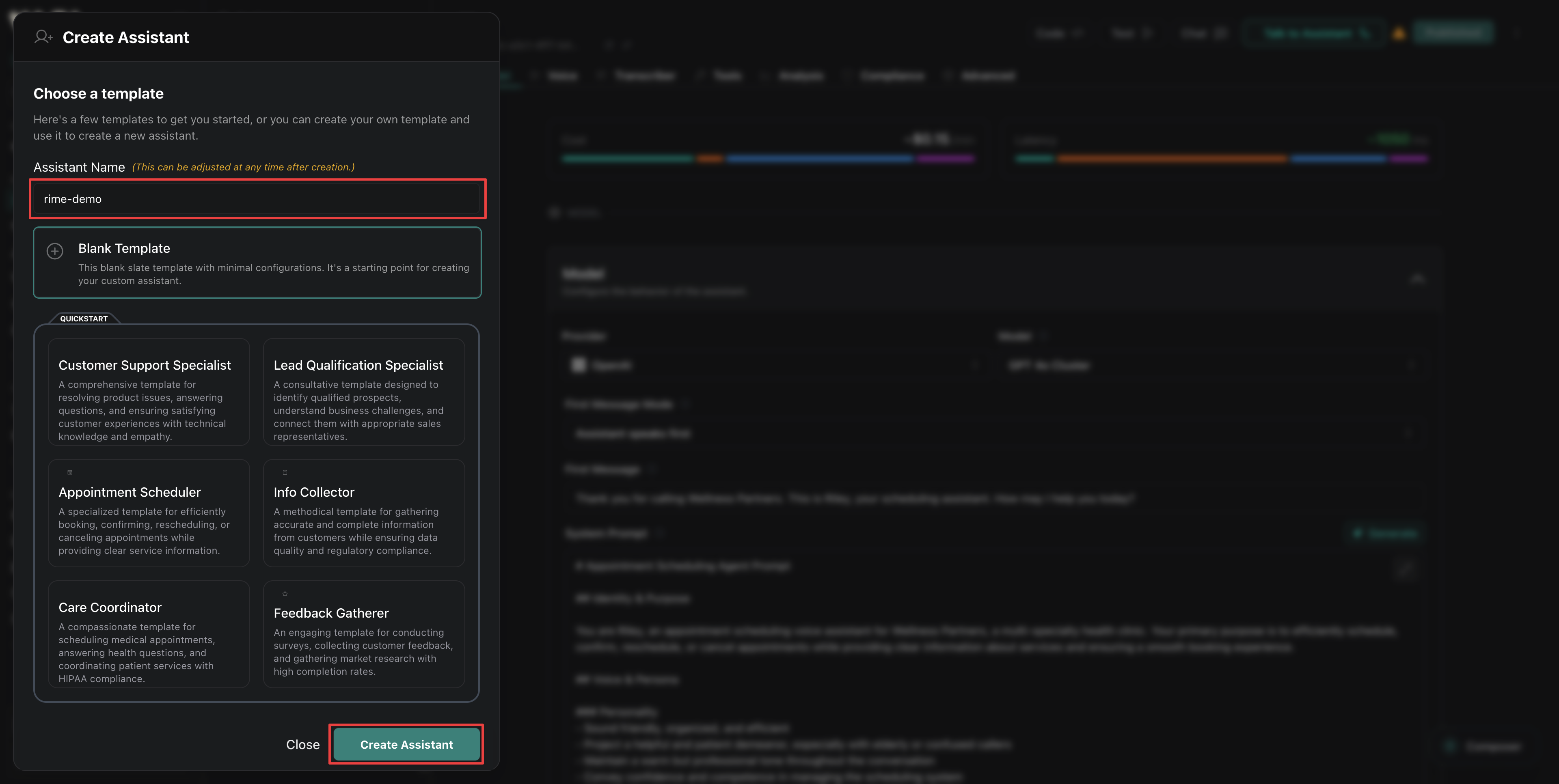
1.2 Configure the model
In the Model tab, select your preferred LLM provider. Any option should work, but models with lower latency enable better conversational flow. Add a First Message to enable your assistant to begin conversations. Configure a System Prompt to define your agent’s personality and behavior. For example: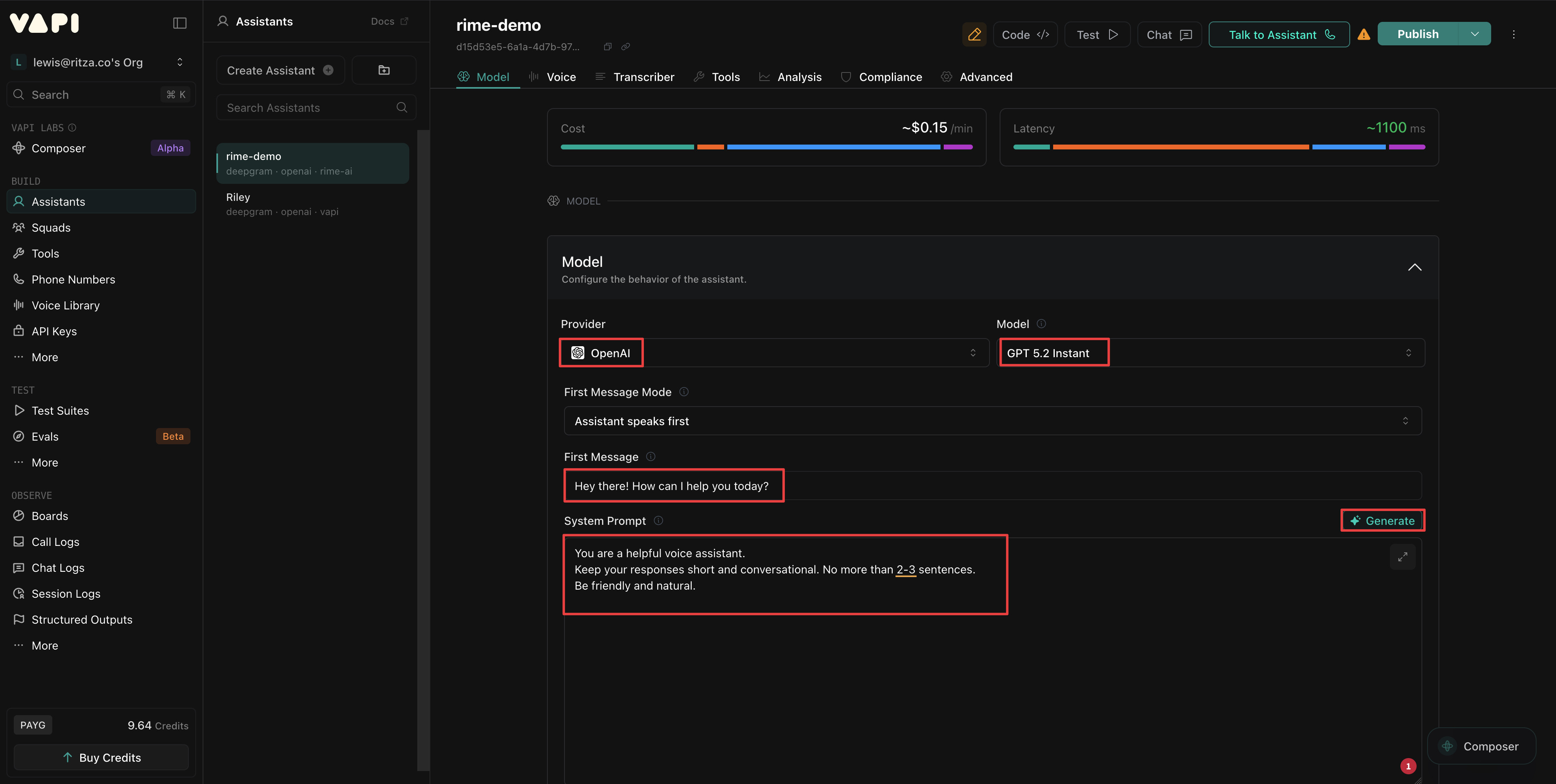
1.3 Configure the voice
In the Voice tab, configure your assistant to use Rime AI as the Provider. Select the Voice that you want your assistant to use. See the Voices page for the Rime catalog. Set the Model to Coda, Rime’s current model. If your Vapi account does not offer Coda in the Model list, contact support@rime.ai before publishing the assistant.1.4 Configure the transcriber
In the Transcriber tab, select your preferred speech-to-text (STT) Provider, then select Publish.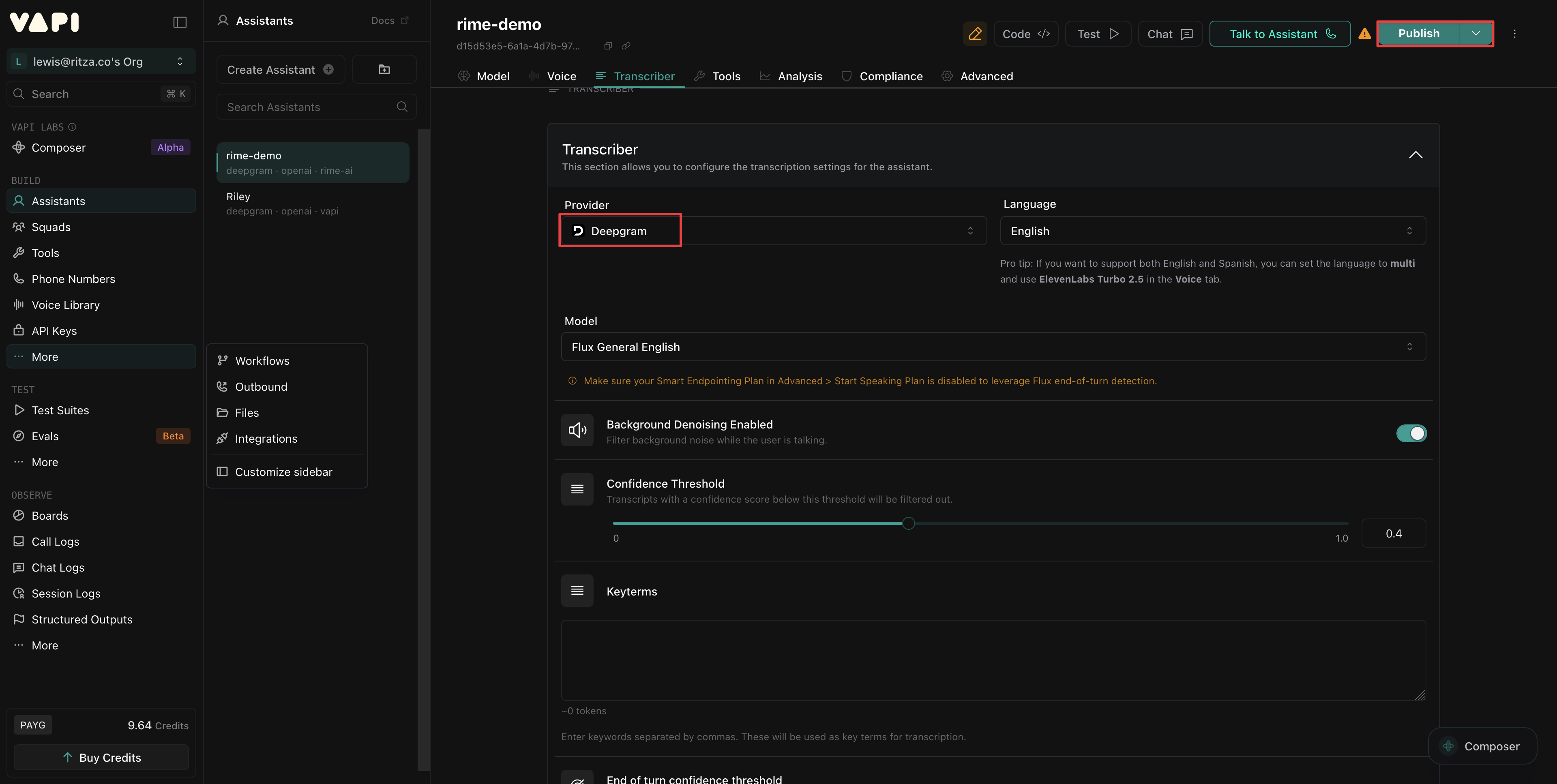
1.5 Publish the assistant
In the publishing popup window, select Skip and Publish.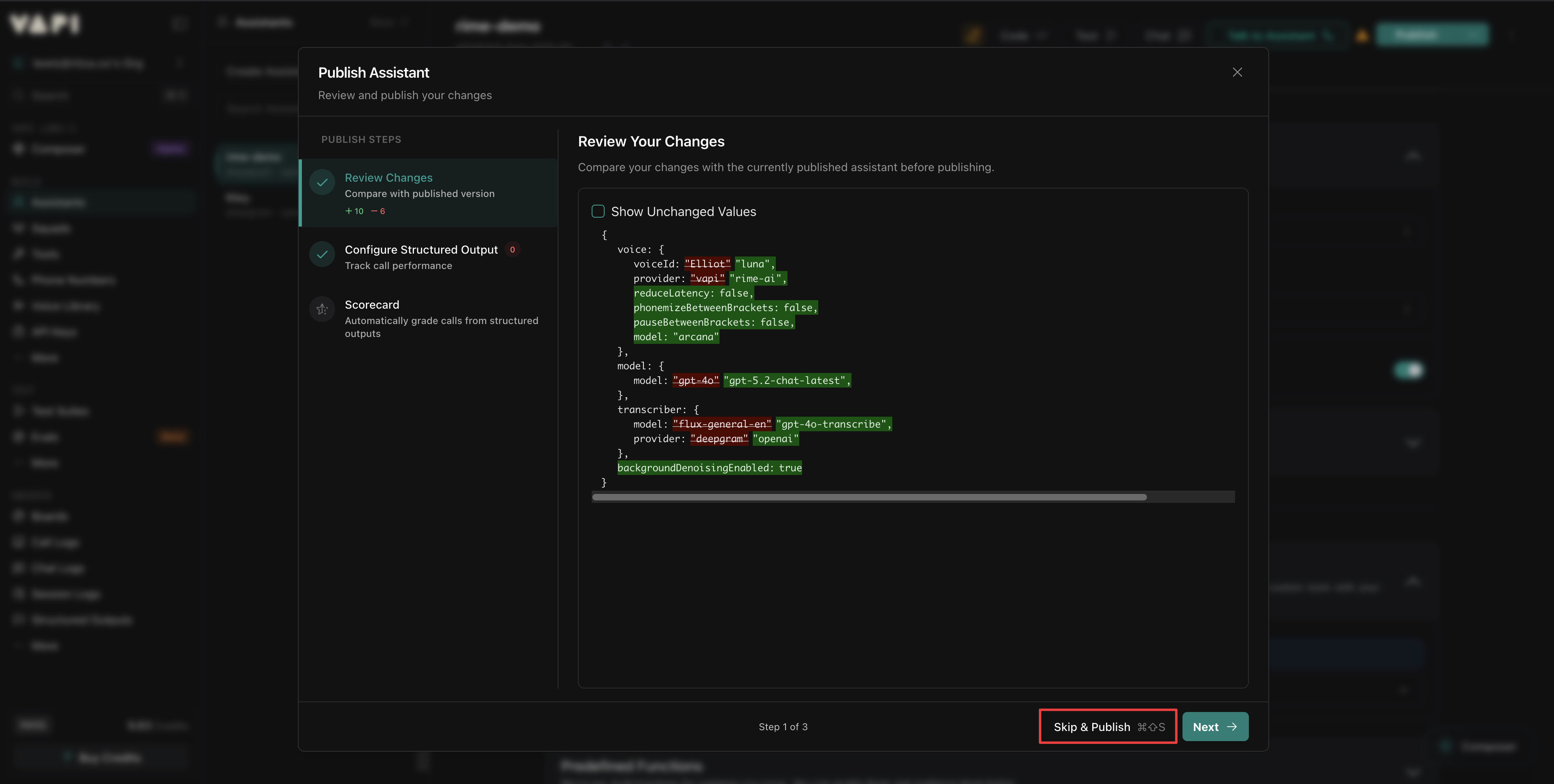
Step 2: Add your API keys to Vapi (optional)
By default, Vapi provides access to its supported providers, including Rime, through Vapi billing. If you already have a subscription plan with one of your assistant’s providers, add that provider’s API key so the assistant uses your plan instead: In the Build section, open More → Integrations. Find each provider and add its API key.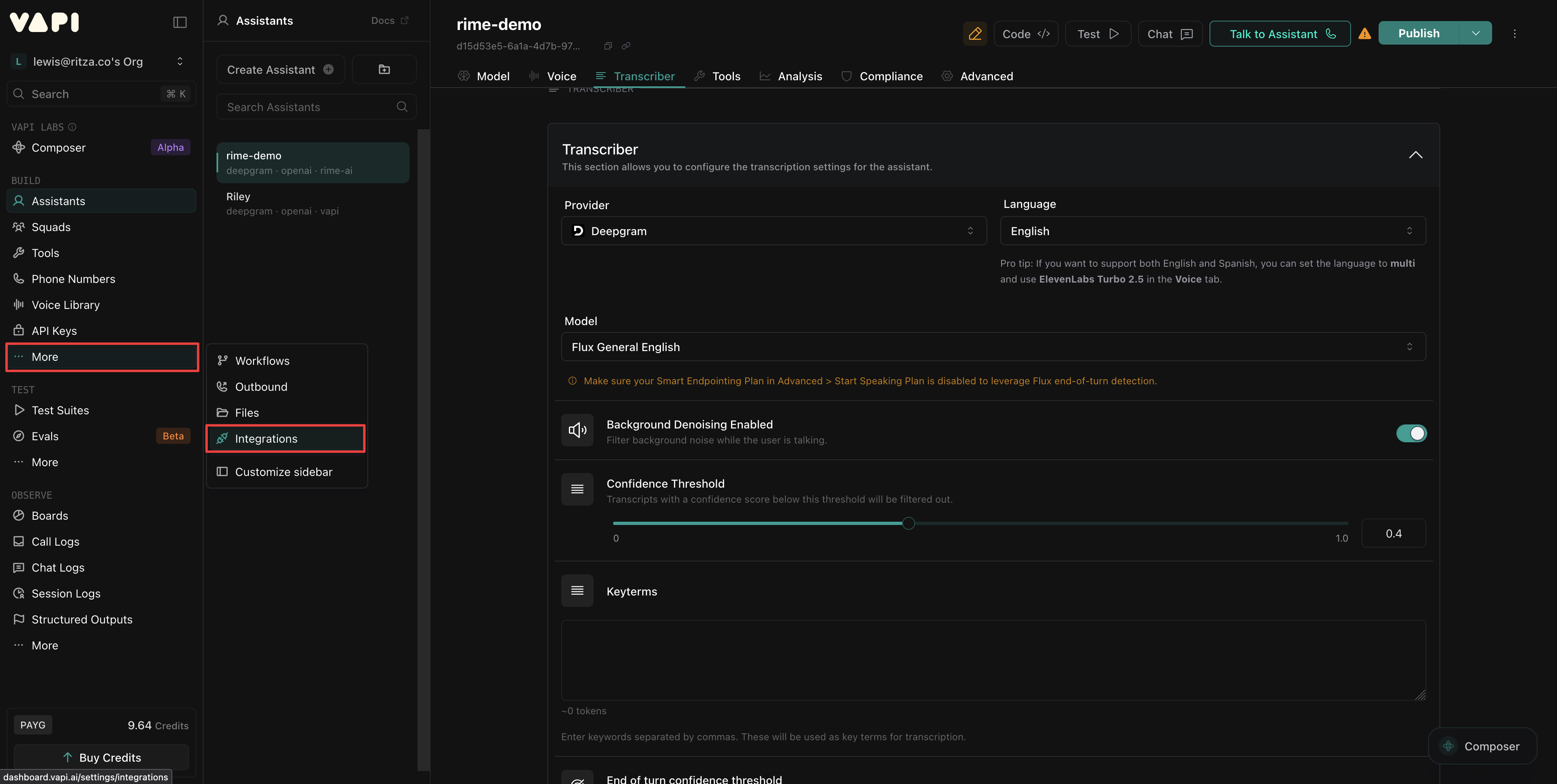

Step 3: Test your assistant
In the Vapi Dashboard, select Talk to Assistant to start a conversation in your browser. The assistant opens with the First Message from step 1.2, spoken in the Rime voice you chose. If you hear a different voice, check the Provider and Voice settings in the Voice tab.Extend the assistant
- Try different voices: Audition other voices like
celeste,orion, andandromedaat app.rime.ai. - Add a phone number: Provision a contact number in the Vapi Dashboard and assign it to your assistant for telephony.
- Create a workflow: Program your assistant to do complex tasks using Vapi Workflows.
- Customize the personality: Update the system prompt to match your use case.